

Exact Match
Exact match: Link records using exact matching
Exact Match lets you match input data from your current Table with reference data from another Table when the values must be identical.
Use it when your data has a stable shared identifier, such as a SKU, invoice number, SIRET, account code, or customer ID.
How It Works
The tool uses logic to identify exact matches between the input data and a reference dataset stored in another Table.
- You configure a Source Table with clean reference values values to match against.
- You define which column in the Source and which column in your current Table should be compared for matching.
Setting up an exact match
Follow these steps:
- Create a new column and select Matching as the column type.
- Select Exact Match as the matching tool.
- In the column settings, select the Source Table—this is the Phacet that contains your reference data.
- Choose the session in the Source Table you want to match against.
- Select the column from the Source Table containing the reference values to match against.
- Select the input column from your current Table—this is the data you want to match against the reference data.
- Click Save and Update to run the matching process.
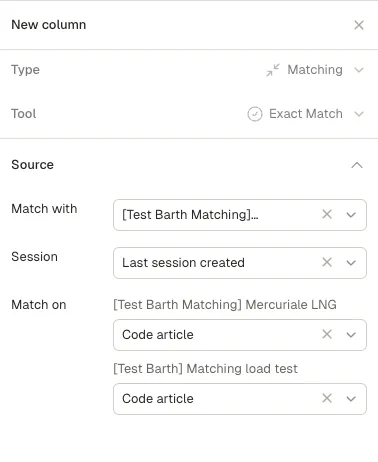
Use this panel to set up your matching rules
Reviewing Results
Once generated, the Matching column will display the number of matched values found in the Source Table.
If no match is found, the column will return “No match found”
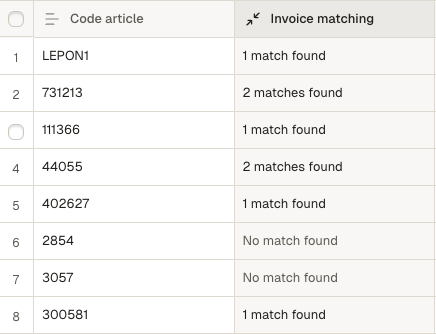
Example of matching identifying invoices related to an article reference
Tip: Accessing matched data
You can create a Text Column and use a Python function to display the information related to the matched item on the Source Table.
The output will be an array containing all columns names and raw values.
Use the example code below
#---- PARAMS -----#
#example_param = @example_column
#---- END PARAMS -----#

#---- MAIN FUNCTION ----#
def main():
  return @matching_column_name
#---- END MAIN FUNCTION ----#

### Replace matching_column_name by the name of the column where
Updated 3 months ago