

Overview
A Table is a structured dataset made of rows and columns, where each column can run AI, code, or web-based transformations at scale.
Each Table can have its own structure, transformations, and data, allowing you to build complete workflows or break complex processes into multiple connected tables.
Tables are edited and operated through a spreadsheet-like interface, making it easy to configure workflows, review results, and iterate.
Use Tables to:
- Extract structured data from documents (invoices, contracts, emails...)
- Categorize and tag content automatically
- Generate text, summaries, or analyses
- Transform data with Python code
- Enrich data with web search
Table structure
Tables are made of 3 core elements:
Columns
Columns define the structure of your data. Each column has:
- A name identifying the data it holds
- A type defining how values are stored and displayed (Text, Number, File, Date, etc.)
- An optional generation logic used to determine how values are generated (User input, AI, Code, Web Search)
Rows
Rows represent individual records in your AI Table. Each row contains all the relevant data for a single item — for example, one invoice, one email, or one product.
Cells
Cells are the individual values at the intersection of a column and a row. A cell can contain user-provided input or display the output of a transformation.
Column types
Column types define how data is stored and displayed. Choose the type that matches your data.
| Type | Description | Example use |
|---|---|---|
| Text | Free-form text content | Extracted descriptions, AI-generated summaries |
| Number | Numeric values | Amounts, quantities, scores |
| File | PDF documents | Source documents for extraction |
| Single Select | One option from a predefined list | Category, status |
| Multiple Select | Multiple options from a predefined list | Tags, labels |
| JSON | Structured data in JSON format | Complex nested extractions |
| Collection | Extracts multiple rows from a single document | Line items, list of entities |
| Match | Links data to an existing dataset | Supplier matching, product lookup |
Each column type has dedicated documentation covering configuration and best practices. See Columns for details.
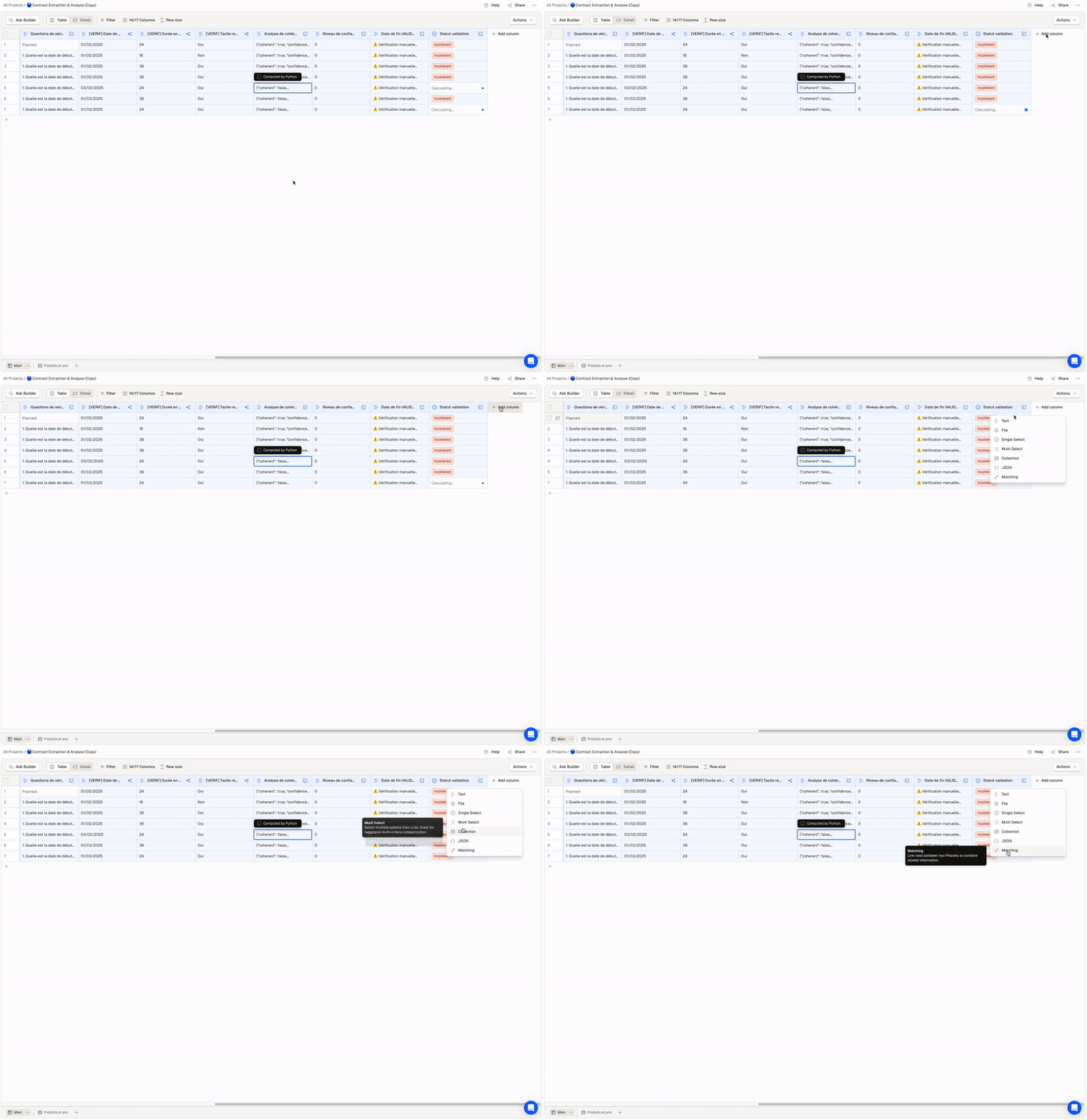
Select the best column type for your workflow
Generating Table values: the power of Tools
AI Tables define what data exists and how it's structured.
To generate values, you can either do it manually or attach specific transformation reasoning to columns.
This reasoning is handled by Tools, which run when you generate values. You can configure a tool for any column (except File columns).
At a high level:
- Tools operate at the column level
- They run row by row
- They can read input from other columns
- They write results into the column they're attached to
Phacet supports different tools depending on your needs:
- AI Tool: Uses AI to generate values based on a prompt. The AI can read other columns as context.
- Python Tool: Executes custom Python code to transform data. Use this for deterministic logic, calculations, or data manipulation.
- Web Search Tool: Use AI in combination with external web search to enrich results.
Each tool has its own configuration, behavior, and best practices. See Tools for details.
You can chain tools across columns: for example, extract text with AI, then process it with Python, then enrich it with Web Search.
Key concepts
| Concept | Description | |
|---|---|---|
| References | Use @column_name to pass data between columns | → |
| Generate & Run | Trigger tools at cell, row, or column level | → |
| Import & Export | Get data in and out of your tables | → |
| Sessions | Organize rows into batches for recurring workflows | → |
Updated 7 months ago