

Overview
Projects are the top-level organizational unit in Phacet. They let you group related Tables into a single, coherent place.
Use Projects to:
- Keep related workflows together (e.g. all finance checks in one place)
- Control access and permissions at the workflow level
- Share and scale complete setups with your team
Why Projects matter
Projects help you manage complexity as your usage of Phacet grows.
They give you clear boundaries between workflows, teams or stages of maturity (testing vs production workflows), while keeping related AI Tables aligned around the same objective.
Typical patterns:
- One Project per business process (e.g. Invoice verification, Shared inbox, Contract review)
- Separate Projects for experimentation and production
- Separate Projects per team or operational domain (Finance, Legal, Ops)
Project structure
A Project contains one or more Tables, each representing a dataset involved in the same workflow.
Hierarchy
- Workspace → Your organization’s Phacet environment
- Project → A container for related workflows
- Table → A table with rows, columns, and logic
- Project → A container for related workflows
Example
- Project: Invoice price verification
- Table: Supplier invoices
- Table: Negotiated prices
- Table: Monthly verification results
Each Table has its own structure and logic, but all contribute to the same operational goal.
How to create a Project
- Click New Project in the top-right corner.
- Enter a Project name.
- Choose how to start:
- Start from scratch: Creates a Project with an empty Table.
- Start with CSV: Creates a Project with a Table pre-populated from imported data.
- Start from template: Uses a pre-built workflow you can customize.
Your Project is created with a first Table ready to configure.
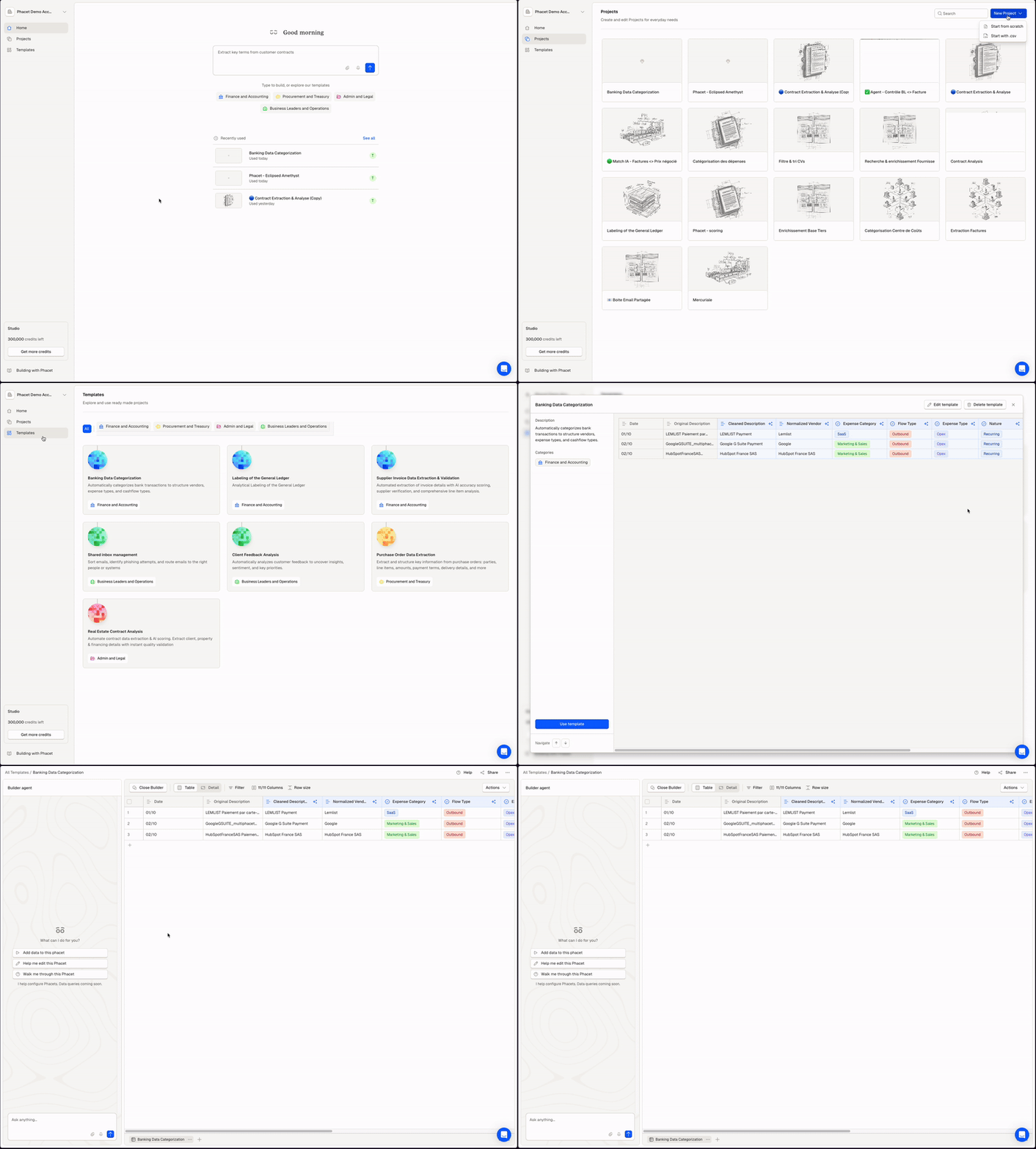
Create your project from scratch or select one of the available workflow templates
Manage Projects
Rename a Project
- Open the Project.
- Click the Project name.
- Edit and save.
Delete a Project
- Open the Project.
- Click Settings → Delete Project.
- Confirm deletion.
Deleting a Project permanently removes all Tables and data
Add a Table to a Project
- Open the Project.
- Click + New Table.
Share & collaborate
You can invite team members to collaborate on a Project.
Invite a user to a Project
- Open the Project.
- Click Share.
- Enter the user's email.
- Select their access level:
- Full Access: Can edit Tables, configure transformations, and share with others.
- Can Use: Can view and use Tables, but cannot edit configurations.
- Click Invite.
Remove access
- Click Share on the Project.
- Find the user
- Click Remove.
Users must already be members of your workspace to be invited to a Project. See Users and Projects Management for details.
Common pitfalls to avoid
💡 Don’t put everything in one Project
Projects should represent related workflows, not entire departments.
💡 Avoid one-table Projects for complex workflows
If a process has multiple datasets or checks, split it into multiple AI Tables inside the same Project.
💡 Separate testing from production
Create a test Project when iterating on prompts or logic, then copy the setup into a production Project.
Updated 7 months ago