

Import & Export
Import data
There are two ways to populate an Table, depending on whether you want to work manually or automate ingestion.
Manual import
Use this approach when you're working with ad-hoc data.
- Add row: Click Add row to create rows manually.
- Drag and drop: Drop files directly into a File column.
- CSV import: Import a CSV file that matches your column structure.
You can import multiple files or CSVs with thousands of rows at once. New rows are created automatically.
Automated import (API & integrations)
Use this approach when data arrives continuously or must stay in sync with other systems.
AI Tables can be populated automatically via:
- Phacet API
- Automation tools such as Zapier, Make, or n8n
This lets you:
- Push new rows when an event occurs (e.g. new email, new invoice, new form submission)
- Stream data from external systems (ERP, CRM, storage, inboxes)
- Run AI Tables as part of an end-to-end automated workflow
Automated imports follow the same rules as manual ones: each incoming item becomes a new row, processed by the column logic you configured.
Export results
- Click Export in the top-right toolbar.
- Choose CSV or Excel format.
- Click Export.
You can automate exports using our API, webhooks, or integrations with Zapier, Make & n8n.
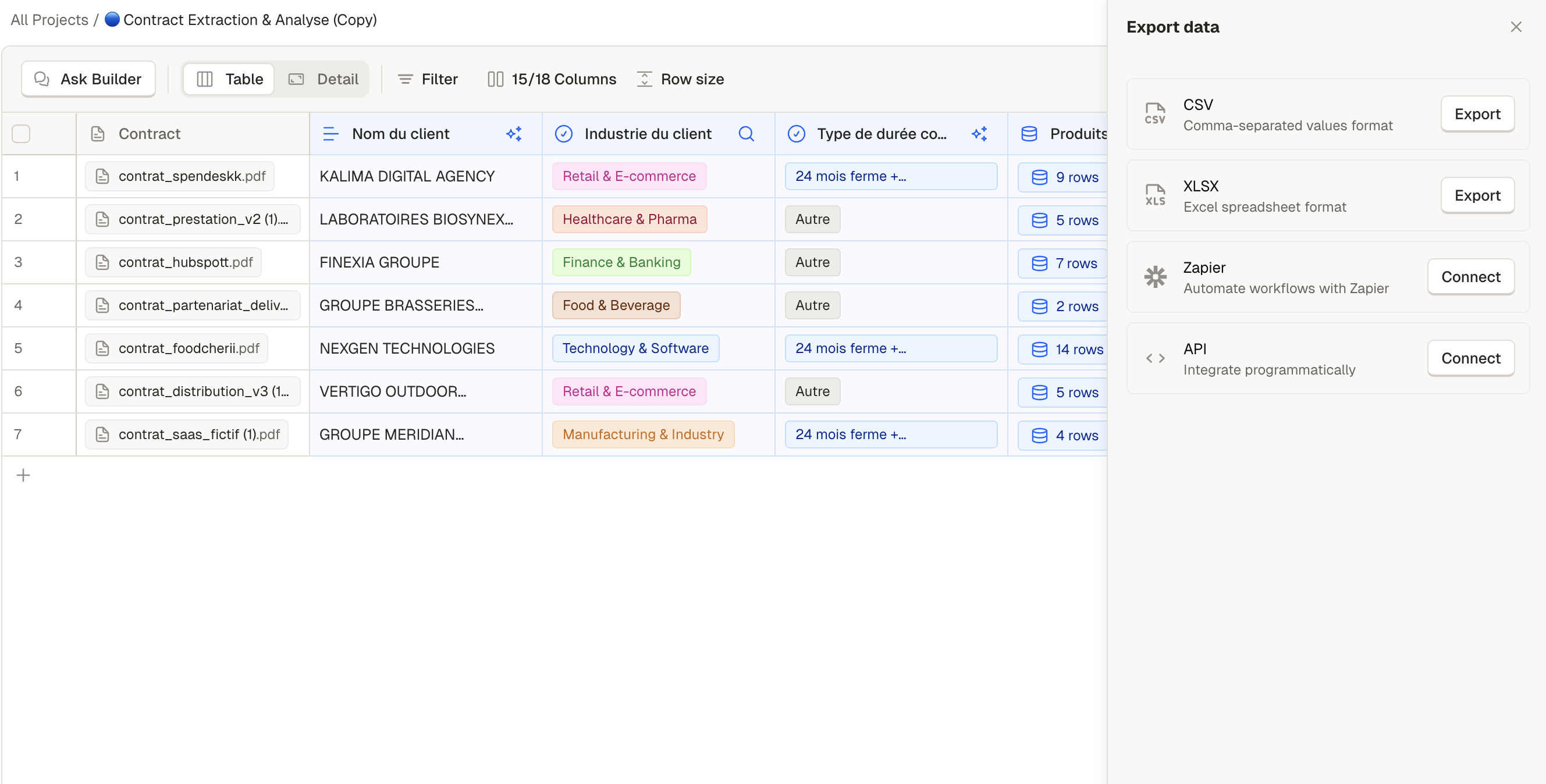
Select the best-suited options to exploit your data
Updated 8 months ago
Did this page help you?