

Connection Guide
How to connect your email inbox to your Phacet and activate results in your accounting system, Gmail, and team notifications.
This guide covers the technical setup for automating data flow in and out of the AI Inbox template. For what the template does and how to configure it, see the [AI Inbox: Multiple Subsidiaries template article].
Workflow connection overview
The AI Inbox Worflow is the following
Email inbox → Phacet (classify, match, screen, route) → Accounting system + email labels + team notifications
Phacet manages the analysis of your emails: classification, matching, recipient and routing parameters, as well as fraud detection.
By connecting Phacet to your internal systems, via dedicated tools (Zapier, Make or n8n), you can make the entire workflow automatic, from email detection to ERP routing email classification.
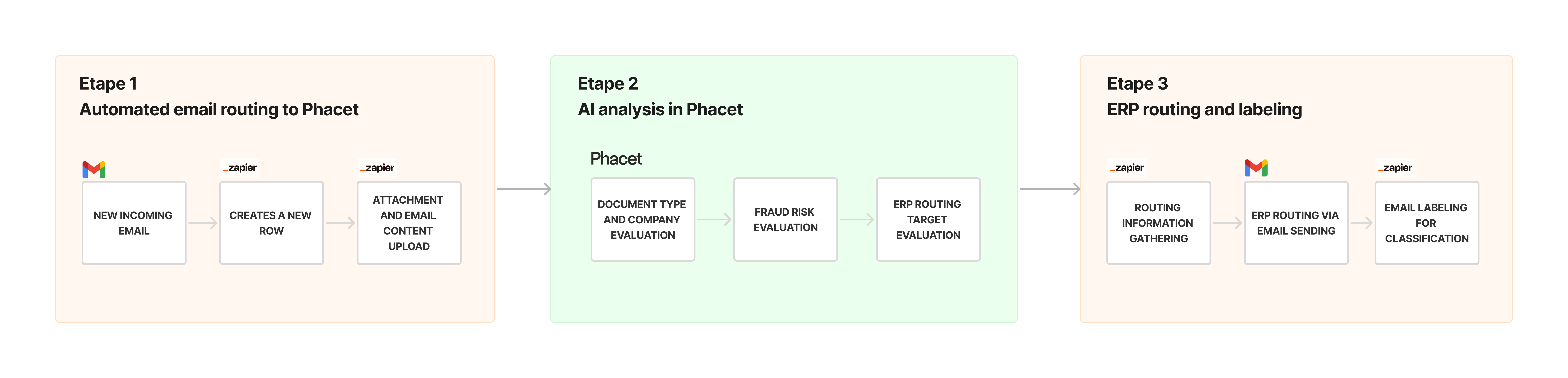
Below are the few steps to set up this autmations.
Sending emails to your Phacet
Automated push method (recommended by Phacet) : your automation tool monitors your inbox and sends new emails with attachments to Phacet automatically.
You'll need to map email fields (sender, subject, body, attachment, IDs) to the corresponding Phacet input columns.
Zapier setup
-
Create a new Zap
-
Trigger: "New Email Matching Search in Gmail"
- Filter: emails with PDF attachments, or emails sent to a specific alias (e.g.,
[email protected]) - Adjust the search filter to match your supplier email flow: too narrow and you'll miss documents, too broad and you'll process irrelevant emails
- Filter: emails with PDF attachments, or emails sent to a specific alias (e.g.,
-
Action: Send to Phacet: map these email fields to the corresponding Phacet input columns:
Email field Phacet column PDF attachment File Sender display name Sender Name Sender email Sender Address Subject line Subject Body text Body Content Received timestamp Received At Attachment filename Filename Email ID Email ID Thread ID Thread ID Email web link Email Web Link -
Deduplication: Add a filter step to skip emails already processed, using the Email ID as unique key. This prevents duplicate processing if your trigger fires on updated emails.
Make setup
The logic is identical to Zapier:
- Trigger module: "Watch Emails" in Gmail (or Outlook equivalent)
- Set the search criteria to match your supplier email flow
- Action module: HTTP request to Phacet API: map the same fields from the table above
- Deduplication: Use a filter module or the built-in "from date" parameter to skip already-processed emails
n8n setup
- Trigger node: Gmail Trigger (or IMAP Email Trigger for non-Gmail)
- Configure label or search filters matching your supplier flow
- Action node: Send to Phacet using the Phacet node: map the same fields from the table above
- Deduplication: Add an IF node checking Email ID against previously processed IDs, or use n8n's built-in deduplication
Activating results in your systems
The agent's decisions become real through three activation patterns:
- Accounting routing: validated documents are forwarded to the right entity's Pennylane/ERP supplier email with the original PDF attached. Only SAFE items with an identified subsidiary are routed.
- Email organization: processed emails are labeled in Gmail by entity and document type, creating an organized inbox without manual filing.
- Exception alerts: SUSPICIOUS items and "To Review" flags trigger Slack or email notifications to the responsible team member.
1. Forward to accounting system
Route validated documents to the right entity's accounting system automatically.
When to use: You configured accounting system routing (Phase 3 in the template setup guide) and want validated documents to flow to Pennylane or your ERP without manual forwarding.
| Step | Configuration |
|---|---|
| Trigger | Phacet output: item processed |
| Filter | Fraud Status = SAFE and Subsidiary ≠ "Not identified" |
| Action | Send Email via Gmail → to the Pennylane/ERP supplier email, with original PDF attached |
Key details:
- The outbound email must attach the original PDF, not a Phacet summary or extracted text
- The destination email is the per-entity supplier email you configured in Phase 3: Phacet outputs this in the "Pennylane Email" column
- Only SAFE items with an identified subsidiary should be routed: the filter prevents unscreened or unmatched documents from entering your accounting system
2. Apply Gmail labels
Organize processed emails in Gmail automatically by entity and document type.
When to use: You configured Gmail labels (Phase 4 in the template setup guide) and want your inbox organized without manual filing.
| Step | Configuration |
|---|---|
| Trigger | Phacet output: item processed |
| Action | Gmail: Add Label to Email → using Email ID + Label Target Company + Label Document Type |
Key details:
- This recipe uses the Email ID from Phacet's output to identify which email to label in Gmail: it applies labels to the original email, not to a new message
- Phacet outputs two label columns: "Label Target Company" (entity label ID) and "Label Document Type" (document type label ID)
- No filter needed: every processed email gets labeled regardless of fraud status or match outcome
3. Notify on exceptions
Alert your team when items need human attention.
When to use: Always. This is the mechanism that surfaces flagged and suspicious items to the right people.
| Step | Configuration |
|---|---|
| Trigger | Phacet output: item processed |
| Filter | Fraud Status = SUSPICIOUS or Review Flag = "To Review" |
| Action | Slack message or email notification → with summary + link to Phacet Review |
Key details:
- Include in the notification: supplier name, document type, fraud status, and a direct link to the item in Phacet Review
- Route SUSPICIOUS items to a security-aware team member or channel: these need evaluation, not just filing
- "To Review" items can go to the general finance team: these are ambiguous classifications or unmatched entities, not security concerns
Integration Troubleshooting
| Problem | Likely cause | Fix |
|---|---|---|
| Emails aren't arriving in Phacet | Trigger filter is too narrow: wrong label, subject pattern, or attachment type filter | Check task history in your automation tool. Broaden filter conditions. Test with a known email that should match. |
| Duplicate documents processed | Trigger fires on "new or updated" instead of "new only" | Add deduplication filter using Email ID as unique key. In Zapier, use a filter step. In Make/n8n, use a filter module or conditional node. |
| Pennylane forwarding not working | Typo in supplier email address, or automation sends Phacet summary instead of original PDF | Verify each address in your Phase 3 config by sending a test email manually. Check that the outbound action attaches the original PDF file, not the Phacet output text. |
| Gmail labels not applied | Using label display name instead of label ID | Retrieve actual label IDs using one of the methods above. The display name "Invoices" is not the ID. |
| Automation runs but Phacet shows no new items | Field mapping is incorrect: required columns are empty or mismatched | Compare your automation's output fields against the field mapping table above. Check that Email ID and File (attachment) are mapped correctly: these are the most commonly missed. |
| Notifications not firing for exceptions | Filter logic doesn't match Phacet output values exactly | Check that your filter matches the exact strings: "SUSPICIOUS" (not "Suspicious"), "To Review" (not "to review"). Phacet outputs are case-sensitive. |
Updated 7 months ago