

AI Match
AI Match: Link records using AI reasoning
AI Match lets you match input data from your current Table with reference data from another Table, automatically and at scale, using AI reasoning.
Use it when you need to reconcile, enrich, or validate data, but do not have a perfect shared identifier. Instead of comparing one value strictly, AI Match compares several criteria and selects the most likely matching row from the Source Table.
AI Match is useful for reconciliation workflows such as invoice line matching, supplier normalization, transaction matching, or price-list validation.
When to use AI Match
Reconcile datasets: Match internal records to master data sources when records do not share a reliable exact key.
Example: Reconcile payment logs with open invoices using amount, transaction label, supplier name, and payment date when the invoice number is missing or incomplete.
Validate business rules: Detect inconsistencies between declared values and official references when the compared data is not written in the same format.
Example: Check purchase prices against a negotiated supplier price list when invoice item descriptions differ from the product names in the price list.
Standardize inputs: Normalize naming conventions across systems when labels are inconsistent, abbreviated, or partially filled.
Example: Match free-text supplier names to a legal entity register using supplier name, address, email domain, or SIRET.
Control ambiguous records: Identify likely matches that should be reviewed before downstream action.
Example: Flag a Possible match when a transaction amount matches an invoice, but the payment label only partially matches the supplier name.
Map categories or accounts: Match free-text business labels to a controlled reference list when exact labels are not available.
Example: Match expense descriptions or invoice line labels with a chart of accounts or category list.
How It Works
AI Match uses AI reasoning to identify matches between the current Table and a Source Table.
- You configure a Source Table with clean reference values to match against.
- You define the criteria AI should compare between your current Table and the Source Table.
- You select which column from the matched Source row should be displayed in the AI Match cell.
For each row, the AI Match column displays:
- a match status icon
- one selected value from the matched Source row
The cell can display three result states:
- Match: a reliable match was found.
- Possible match: a plausible match was found, but should be reviewed.
- No match: no reliable match was found.
You can also review:
- the reasoning behind the match decision
- the matched column result
- the confidence level
- all data from the matched Source row, column by column
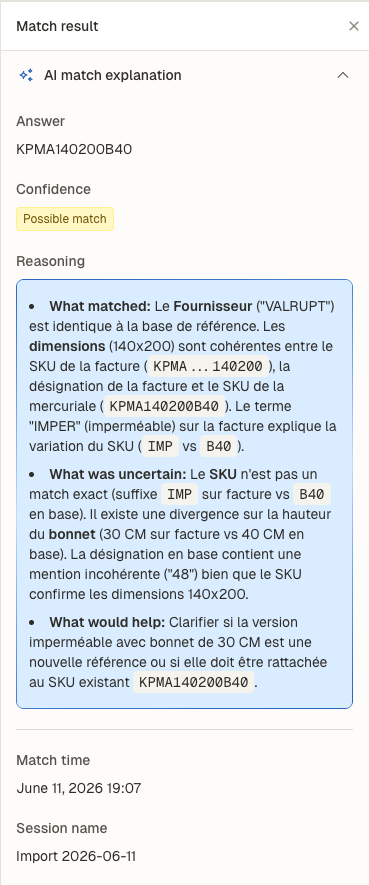
Example of side panel explaining AI reasoning leading to the match
AI Match selects one Source row only. If several rows are plausible, only the best candidate is displayed.
Setting up an AI Match Column
- Create a new column and select Match as the column type.
- Select AI Match as the tool.
- In the column settings, select the Source Table — this is the Table that contains your reference data.
- In the instructions section, define which criteria from your current Table should be compared with the Source Table.
Be specific. AI Match performs better when you define what matters, what can vary, and what is enough to confirm a match. See below for example prompts. - Select which column from the matched Source row should be displayed in the AI Match cell.
Only one selected value is displayed in the cell.
The side panel shows the other columns from the matched reference row. - Click Save and then Save without generating.
- Trigger the match later when you are ready to generate results.
Tips for writing matching instructions
Be specific about how each criterion should be matched and how much flexibility AI should use.
For example, if you use product designation, explain how close the designations should be. If one criterion is enough to determine a match, explain it clearly.
You can also combine exact and AI-based matching by specifying:
- criteria that must match exactly
- criteria that can be interpreted by AI
This is useful when some source data is structured, but not always filled.
Example:
Match each invoice line with the Source Table.

Use the following criteria:

1. Compare @InvoiceItemDescription with the product designation in the Source Table.
Accept minor wording differences, abbreviations, spelling differences, and singular/plural variations.

2. Compare @Packaging with the Source Table packaging.
The packaging must describe the same quantity or format. For example, "box of 12" and "12-pack" can match.

3. Compare @Unit with the Source Table unit.
The unit must be equivalent. Do not match kg with liters.

4. If @SKU is available, it must match exactly with the Source Table SKU.
If the SKU matches exactly, consider it the strongest criterion.

Return the reference price from the matched Source row.

If the designation is close but packaging or unit is unclear, return Possible match.
If no product is sufficiently close, return No match.
💡 Tell the AI when one criterion is enough to determine a match. For example: “If the SKU matches exactly, consider it a match even if the description wording differs.”
Reviewing Results
Once generated, the AI Match column displays a status icon and the selected value from the matched Source row.
Examples:
| Cell status | Returned value |
|---|---|
| 🟢 Match | PRD-0042 |
| 🟠 Possible match | Supplier ABC SAS |
| ❌ No match | empty or no matched value |
Use the side panel to understand why AI Match selected the row.
Click the cell to open the side panel and review:
- the reasoning behind the match
- the confidence level
- the selected matched result
- all columns from the matched Source row
AI Match does not let users manually validate, reject, or override a match. If a workflow requires manual approval, add a separate review step or control process after the match.
Examples of AI Match configuration
Match invoice items with a price list
Use this when invoice lines do not have reliable SKUs.
Match each invoice line with the Source price list.

Use the following criteria:

1. Compare @InvoiceItemDescription with the product designation.
Accept minor wording differences, abbreviations, spelling differences, and translated terms if the product is clearly the same.

2. Compare @Packaging with the Source packaging.
Packaging must be compatible.

3. Compare @Unit with the Source unit.
Unit must be equivalent.

4. If @SKU is available, it must match exactly.

If the SKU matches exactly, return Match.
If the product seems correct but packaging or unit is unclear, return Possible match.
If no product is sufficiently close, return No match.
Match suppliers with a supplier database
Use this when supplier names are written differently across documents.
Match each supplier from the current Table with the Source supplier database.

Use the following criteria:

1. Compare @SupplierName with the official supplier name.
Accept legal suffix variations such as SAS, SARL, Ltd, GmbH, or Inc.

2. Compare @SupplierAddress with the Source address.
City, country, and street should be consistent when available.

3. Compare @SupplierEmail with the Source email domain.
If the domain clearly belongs to the supplier, use it as a strong supporting signal.

4. If @SIRET is available, it must match exactly.

If the SIRET matches exactly, return Match.
If the name is close but address or email is missing, return Possible match.
If the supplier appears unrelated, return No match.
Match bank transactions with invoices
Use this to reconcile payment lines with expected invoices.
Match each bank transaction with the Source invoice Table.

Use the following criteria:

1. Compare @TransactionAmount with the invoice total amount.
The amount must match exactly unless a payment fee or small rounding difference is visible.

2. Compare @TransactionLabel with the invoice number, supplier name, or customer name.
Accept labels that include partial invoice references or abbreviated company names.

3. Compare @TransactionDate with the invoice due date or expected payment date.
Dates can differ by a few days if the amount and label strongly support the match.

If amount and invoice number both match, return Match.
If amount matches but the label is ambiguous, return Possible match.
If the amount does not match and there is no strong label evidence, return No match.
Best practices for high-quality results
Test on 5–10 rows first
Before generating matches at scale, test the AI Match column on a few representative rows.
Use rows that include:
- an obvious match
- a likely possible match
- a row that should return no match
This helps you check whether your criteria are strict enough.
Start with clean Source data
AI Match depends on the quality of the Source Table.
Before running the match, check that the Source Table has:
- clear names or descriptions
- stable identifiers when available
- consistent units and formats
- no unnecessary duplicates
- enough context to distinguish similar rows
Make match criterion explicit
Avoid vague instructions like:
Find the best matching supplier.Use specific instructions instead:
Match @SupplierName with the official supplier name.
Use @SIRET as an exact criterion when available.
Use @SupplierAddress and @SupplierEmail as supporting evidence.
Ignore legal suffix differences such as SAS, SARL, Ltd, or GmbH.
Explain what must match exactly
Some fields should not be interpreted loosely.
Examples:
- SKU
- SIRET
- invoice number
- IBAN
- account code
- tax ID
When a field must be exact, write it clearly:
If @SIRET is available, it must match exactly. Do not infer or approximate SIRET values.Inspect Possible match results
Treat Possible match as a signal to review.
Open the side panel and check:
- why AI Match selected the row
- which criteria were strong
- which criteria were weak or missing
- whether the matched Source row data is coherent
⚠️ Do not use Possible match results for high-risk automation without an additional control step.
Troubleshooting
The match is too broad
Poor instruction:
Match the product @product with the price list.Better instruction:
Match @ProductDescription with the Source product designation.
Packaging and unit must be compatible.
Do not match two products if the format, unit, or product family differs.
The match is too strict
Bad instruction:
The product name must be exactly identical.Better instruction:
Accept minor wording differences, abbreviations, spelling variations, and translated terms if the product, packaging, and unit clearly refer to the same item.The wrong row is selected in the Source Table
AI Match selects only one row. If the Source Table contains similar rows, ambiguity can lead to weak matches.
Improve the setup by:
- removing duplicate Source rows
- adding stronger criteria
- using exact identifiers when available
- selecting a more specific Source Table
- making mandatory criteria explicit
No match is found
Check whether:
- the Source Table contains the expected record
- the relevant columns are included in the criteria
- the wording is too strict
- important values are missing from the current row
- the Source data is too sparse
Start by testing on one row where you know the expected match. Then adjust the criteria.
Updated 3 months ago